
The Product Drop feature allows you to upload a single design and automatically generate multiple products. Follow the steps below to bulk upload your products.
For the best print quality, upload a PNG or JPEG image with a minimum resolution of 2500 × 2500 pixels.
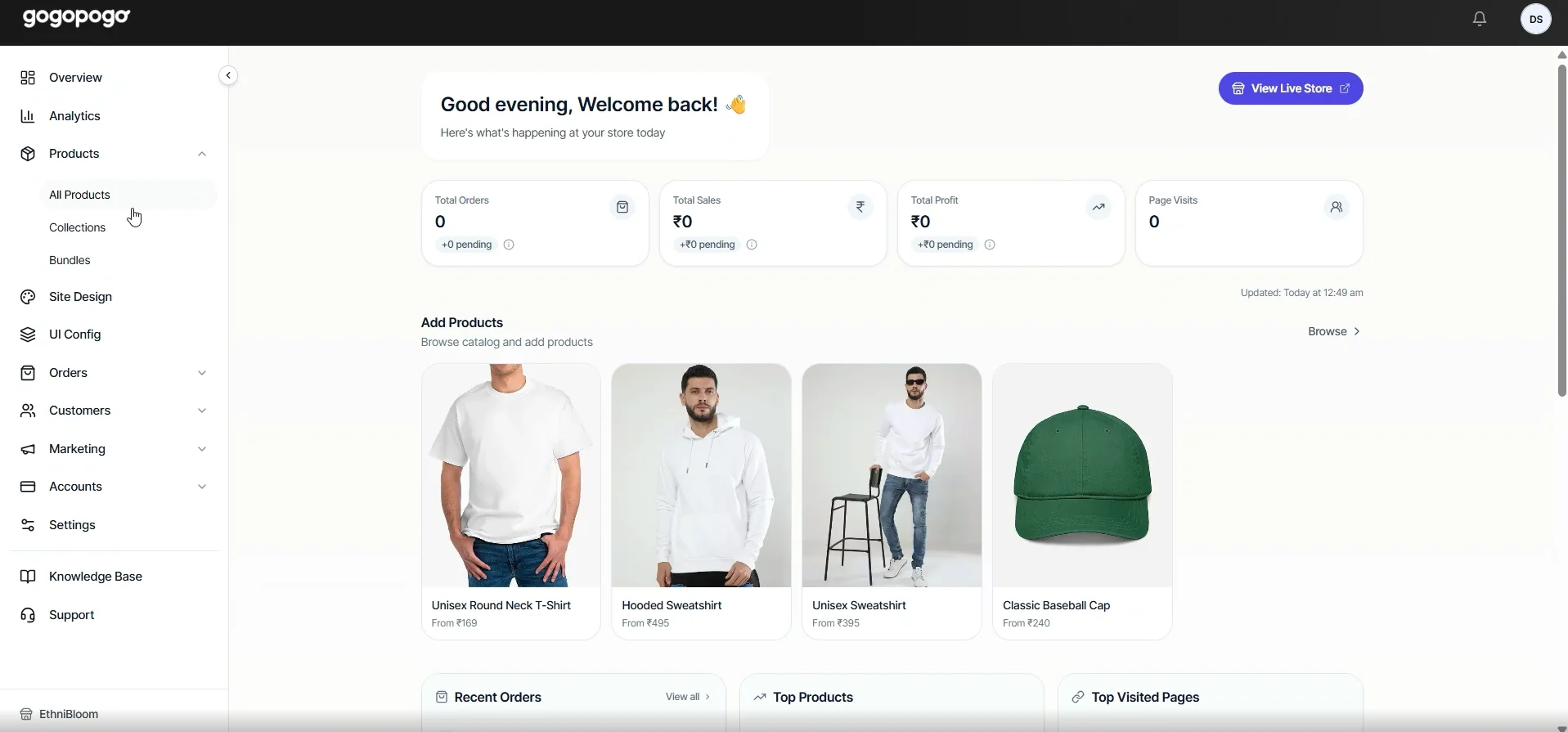
Go to All Products
Log in to your GoGoPogo Dashboard.
From the left navigation menu, click Products and then select All Products.
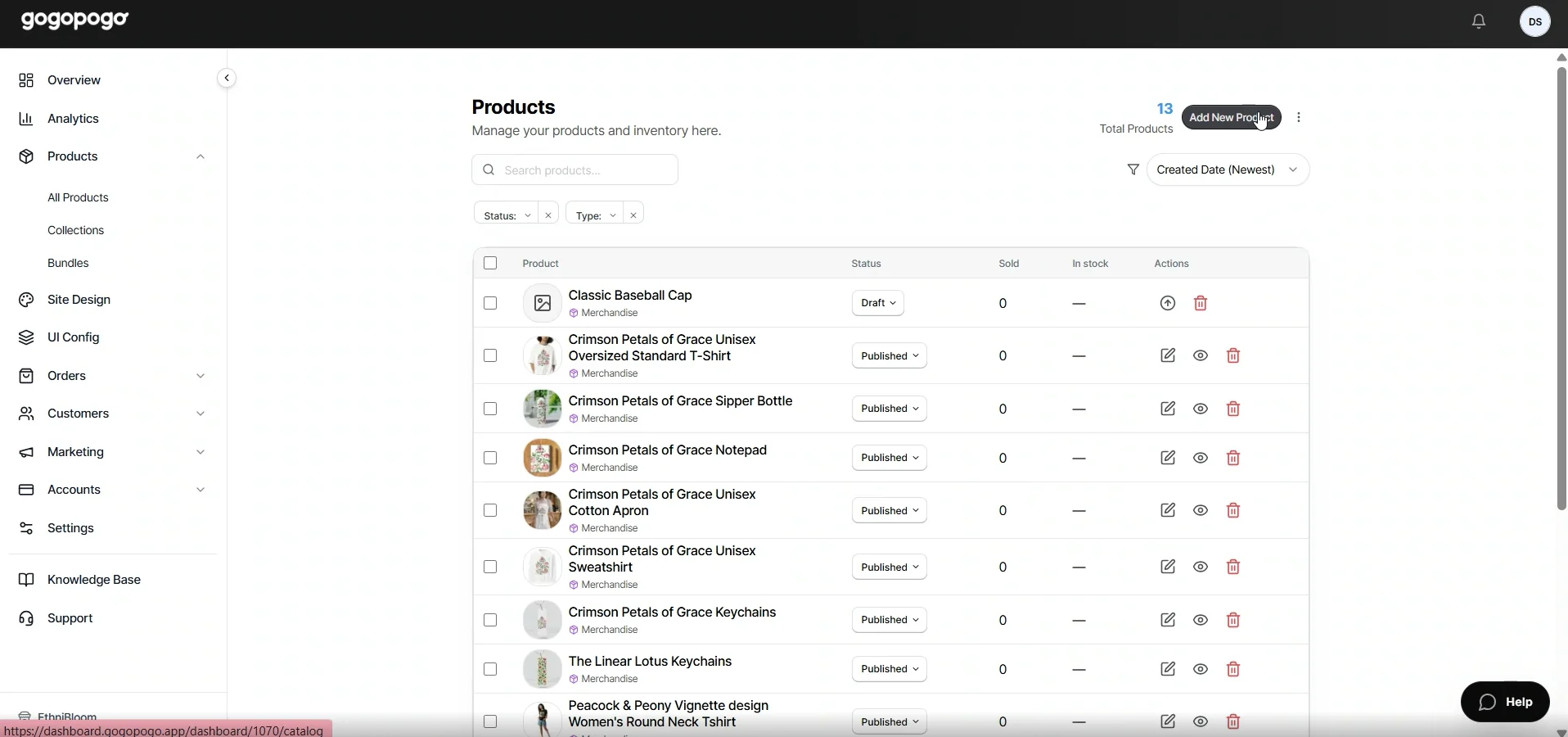
Start a New Product
Click Add New Product.
This opens the Product Catalog, where you can choose products for your design.
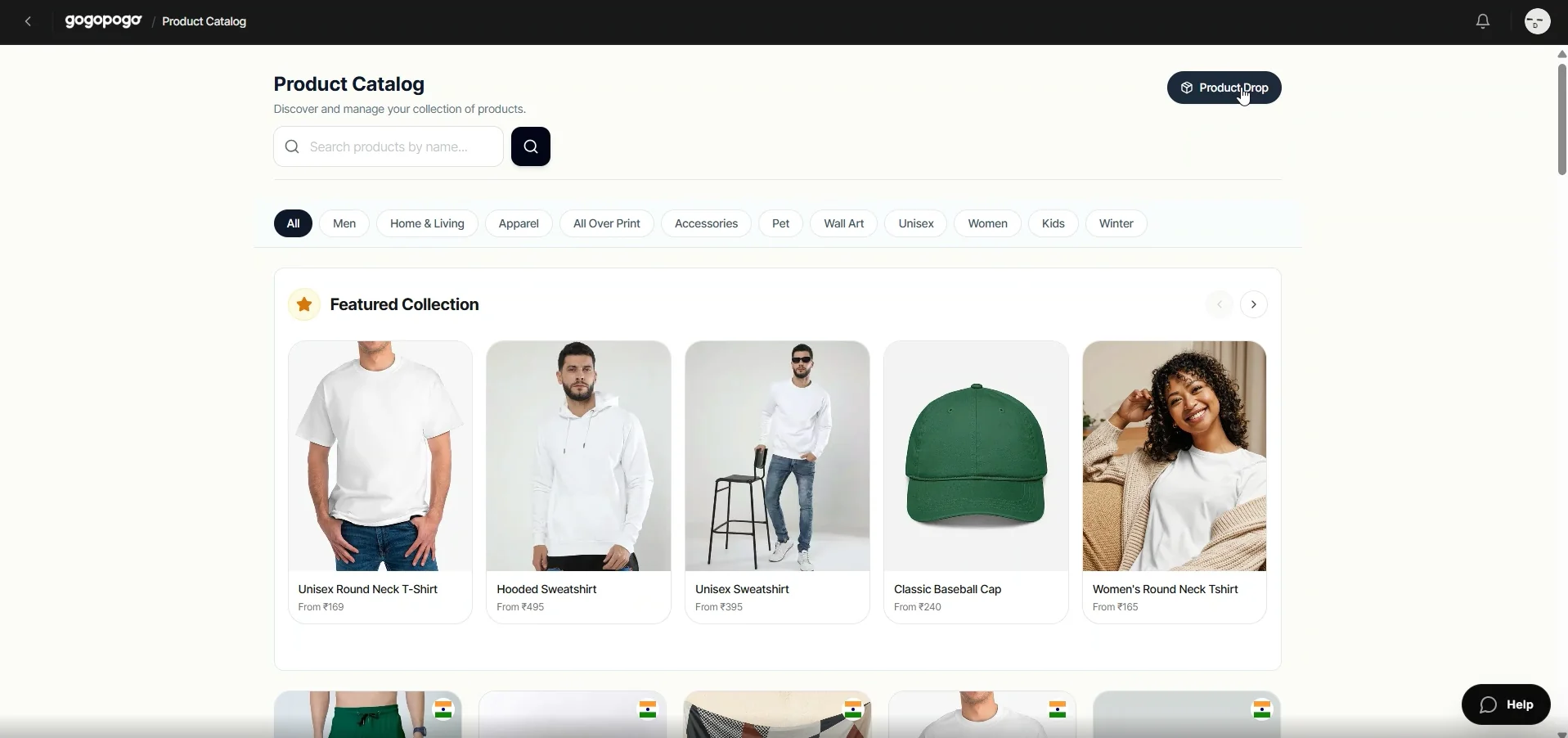
Choose Product Drop
Select the Product Drop option from the top-right corner.
This option lets you generate multiple products from a single design.
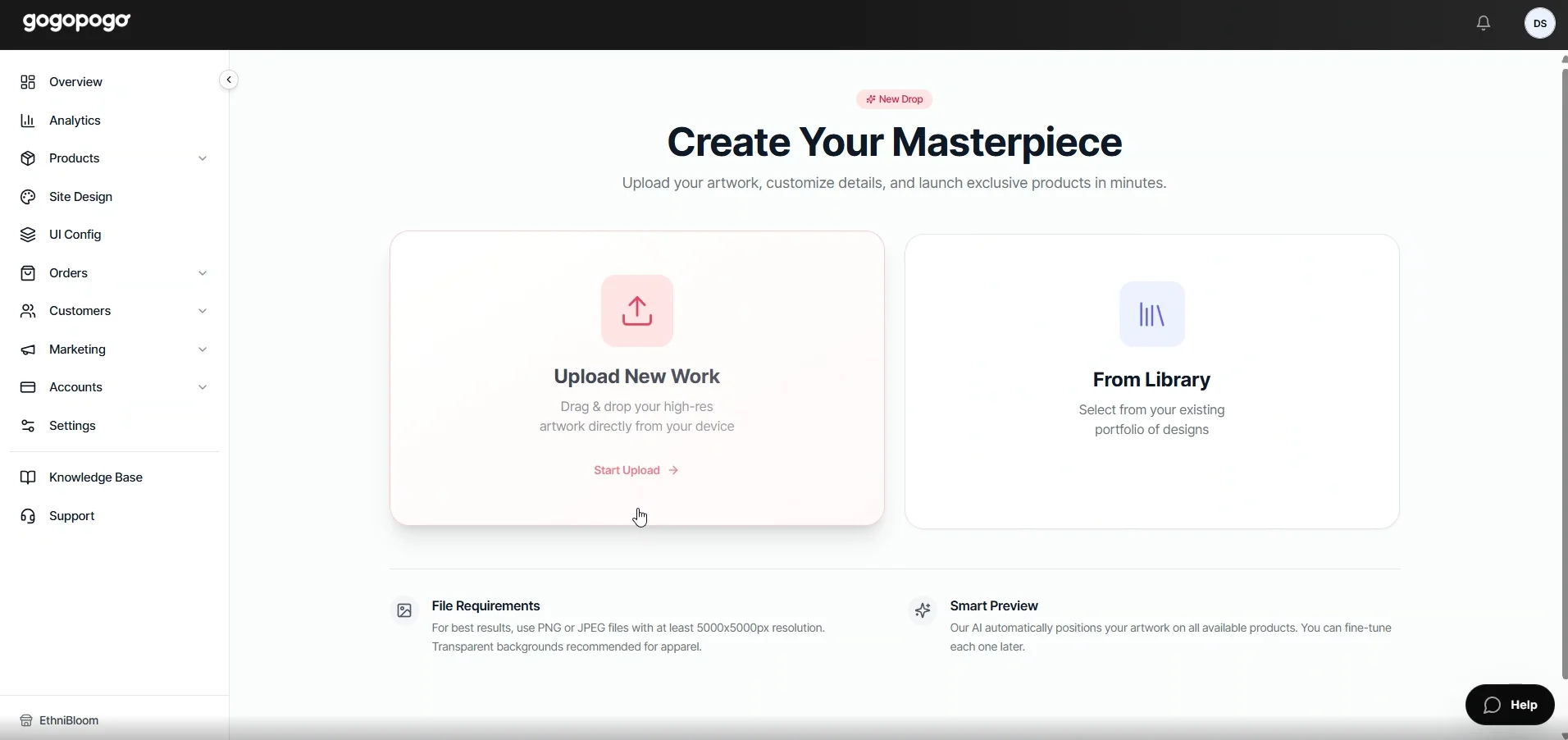
Select an Upload Method
Choose Upload New Work.
If your design has already been uploaded, you can select From Library instead.
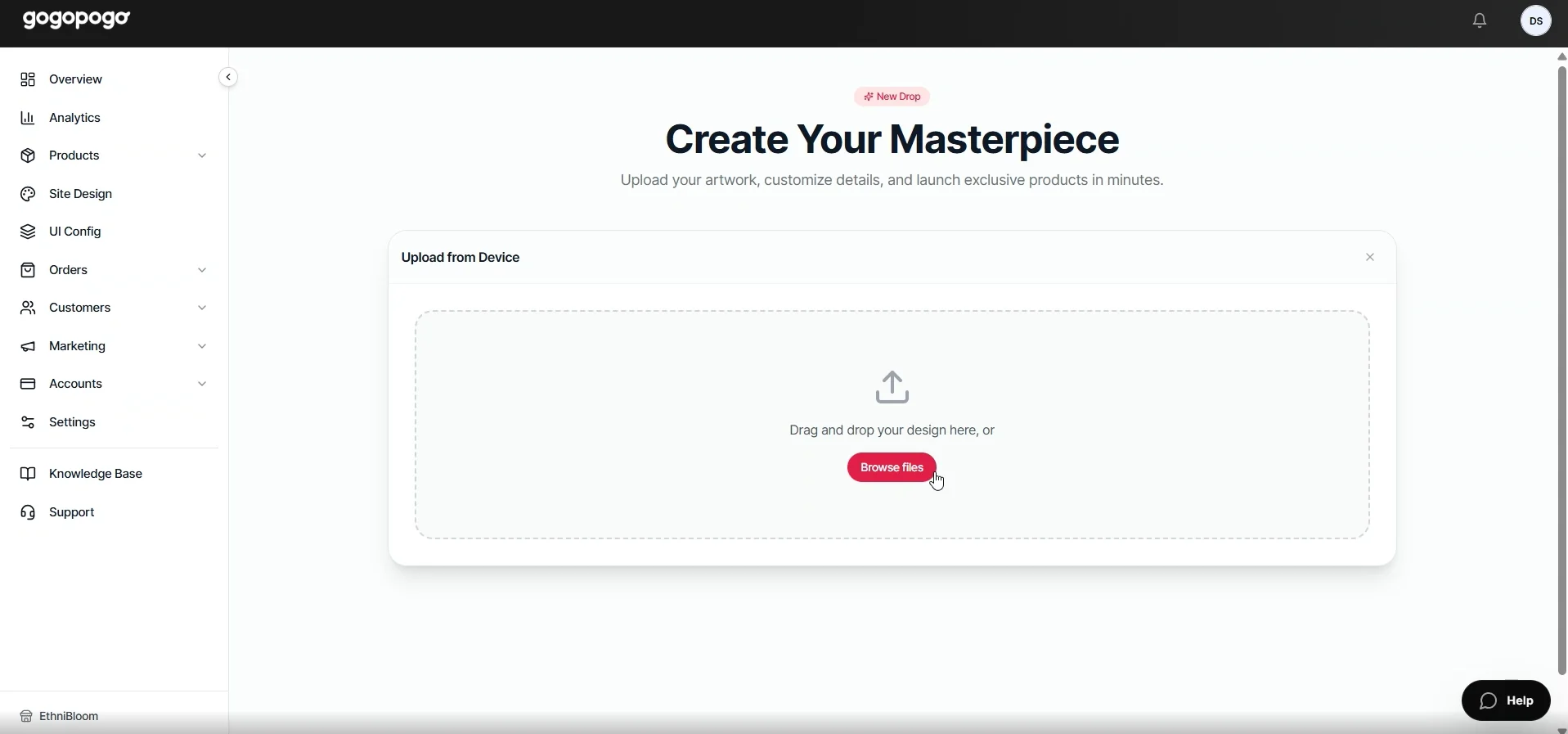
Upload Your Artwork
Click Browse Files and upload your design from your device.
For the best print quality, use an image with a minimum resolution of 2500 × 2500 pixels.
Configure Product Information
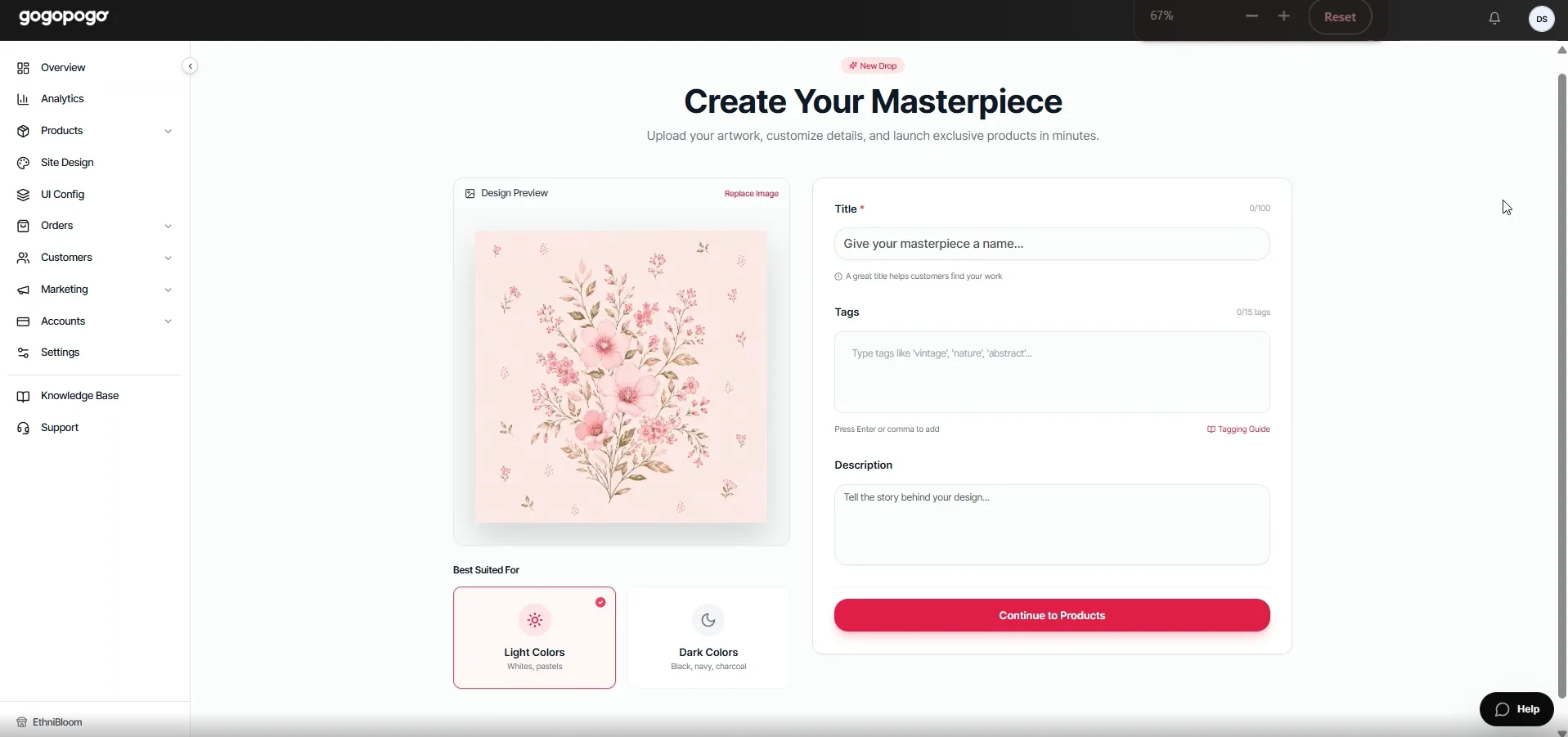
Fill in the product details.
- Enter a Title.
- Add Tags.
- Write a Description.
- Choose whether your design is best suited for Light Colors or Dark Colors.
Click Continue to Products.
Review Product Selection
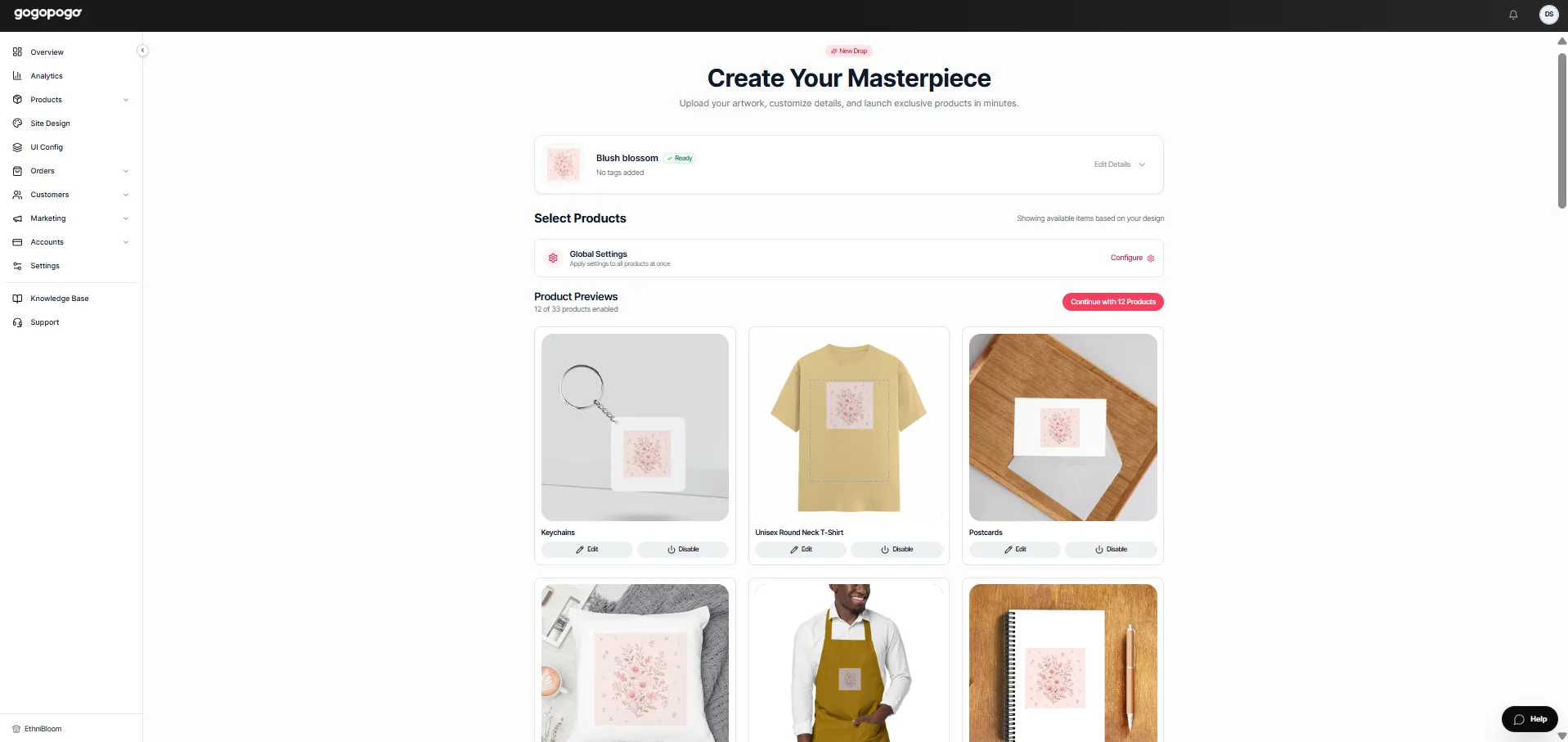
Review the generated products.
On this page, you can:
- Review all generated products.
- Enable the products you want to create.
- Disable the products you don't want to include.
- Edit individual product settings.
- Preview how your design looks on each product.
When you're satisfied, click Continue with Selected Products.
Confirm Product Creation
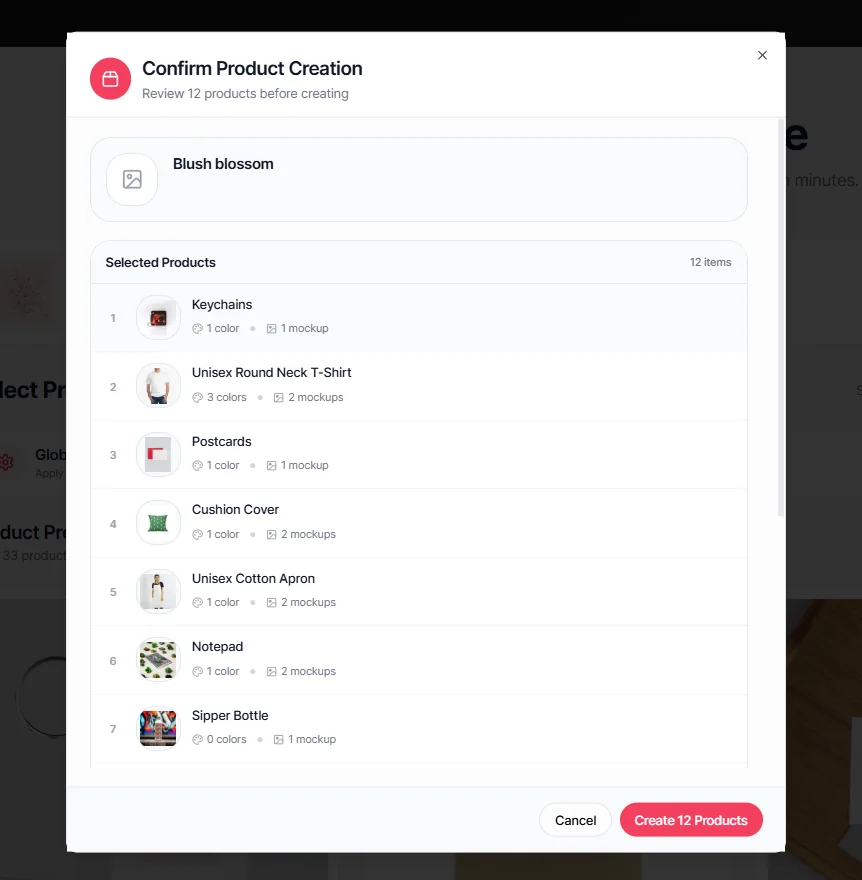
Review the confirmation window.
Click Create Products to start generating your selected products.
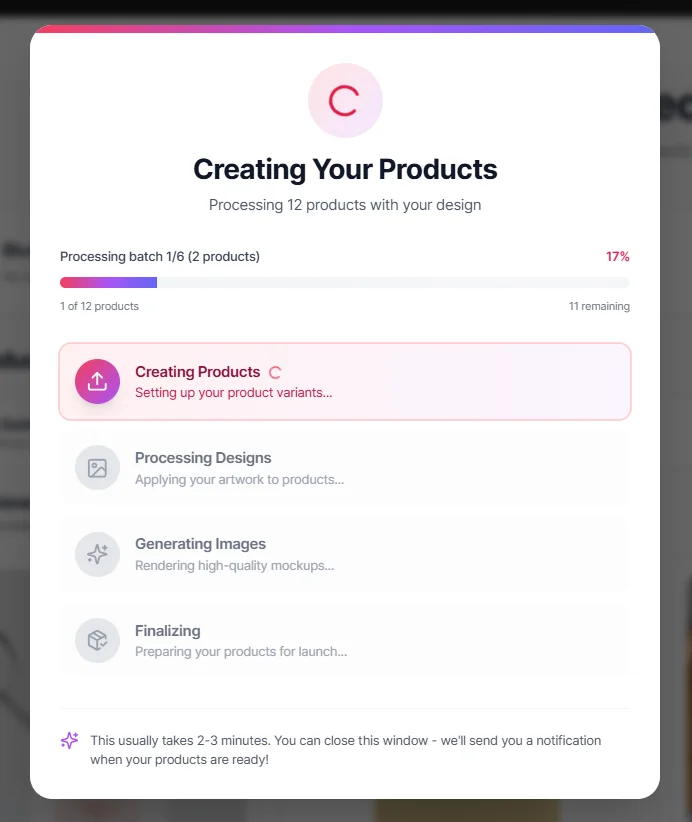
Generate Your Products
Wait while GoGoPogo creates your products.
During this process, the platform will:
- Generate product variants.
- Apply your design.
- Create product mockups.
- Prepare your products for launch.
This process may take a few minutes.
Access Your New Products
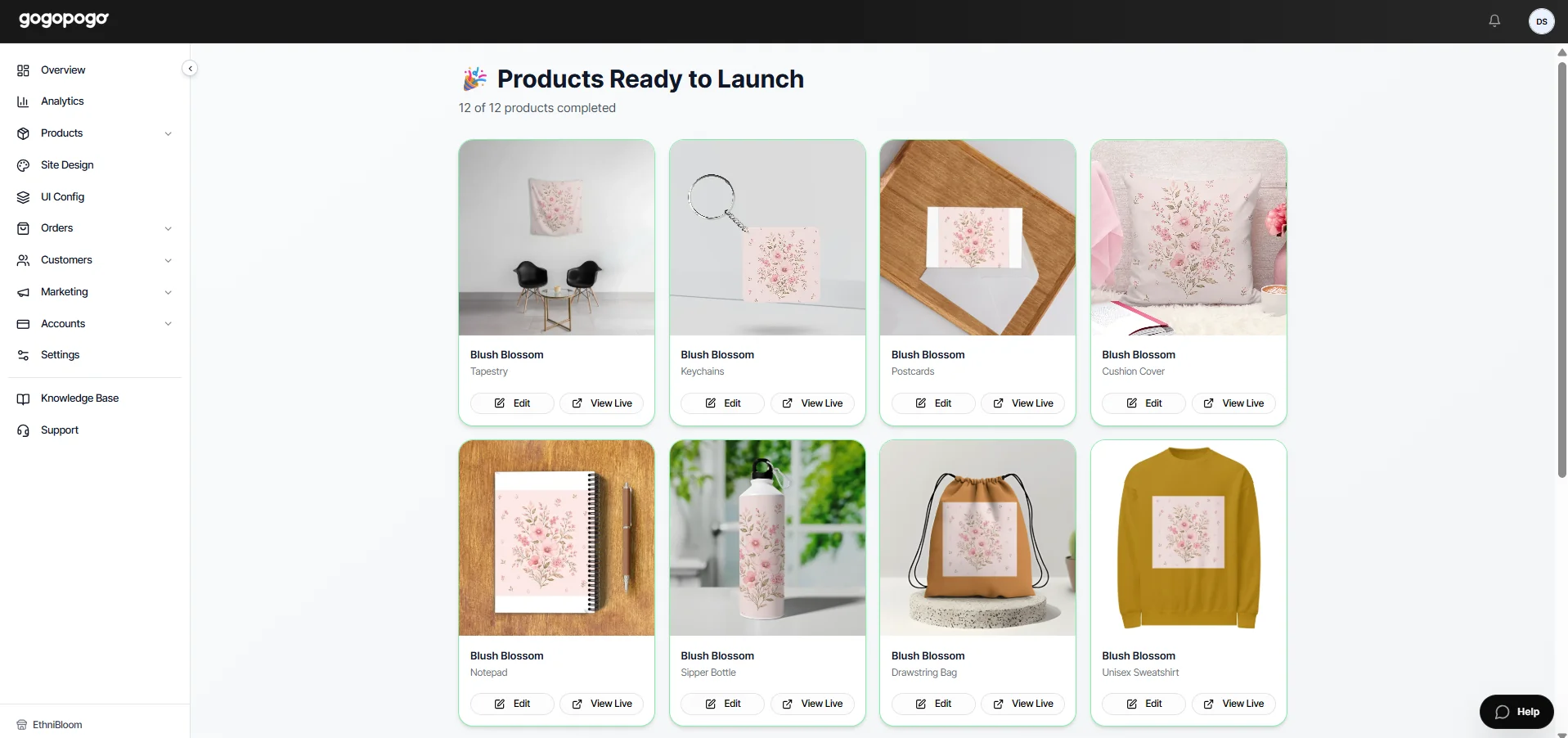
Once the process is complete, you'll see the Products Ready to Launch page.
From here, you can:
- Edit your products.
- Preview them using View Live.
- Continue customizing them before publishing.
Your products have now been successfully created.
Verify Products in Your Catalog
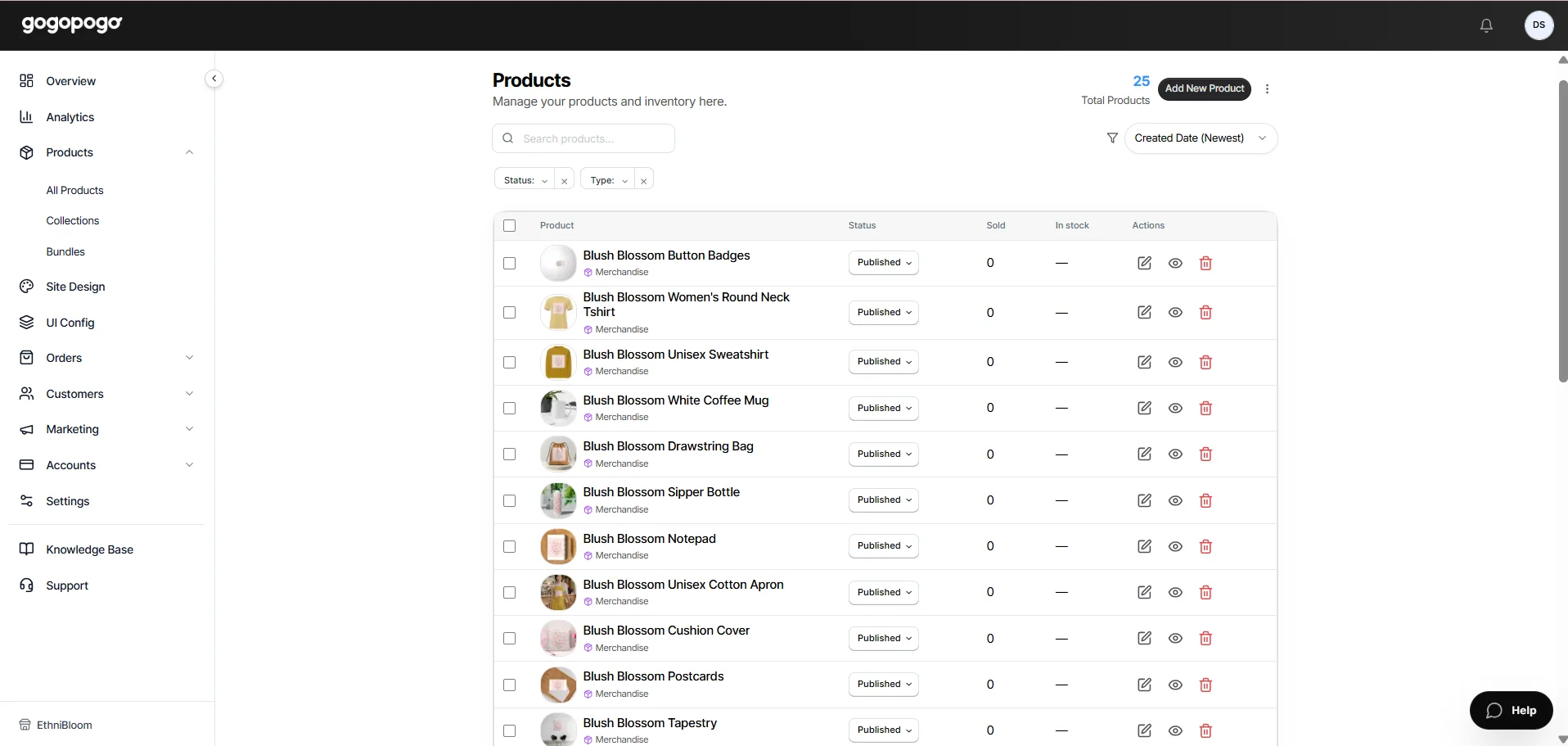
Go back to Products > All Products.
You'll now see all the products that were created from your uploaded design. Each product will appear as a separate listing with the same design applied, ready for you to edit, preview, delete or publish.
- Use images with a resolution of 2500 × 2500 pixels or higher.
- Give your products a clear and descriptive title.
- Add relevant tags to organize your designs.
- Review each generated product before creating it.
- Enable only the products you want to publish.