
Keeping product information updated helps ensure accurate pricing, visibility, and organization in your store. GoGoPogo allows you to edit product details, images, pricing, tags, and collections from a single product editor.
Follow the steps below to update your product information.
Go to All Products
From the dashboard sidebar, navigate to:
Products → All Products
This section displays all products available in your store.
Locate the product you want to update and click the Pencil (Edit) icon on the right side of the product row.
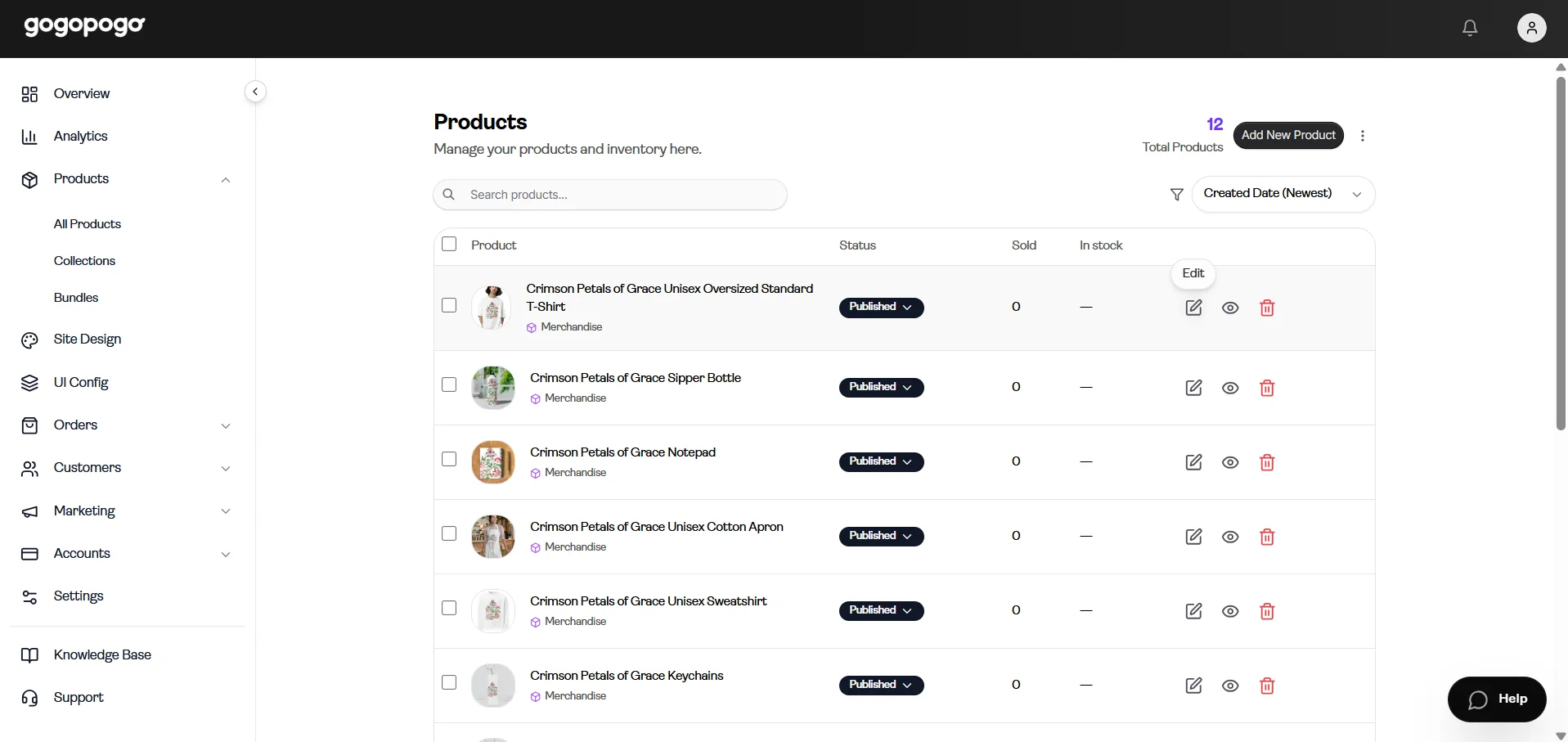
Open the Product Editor
Clicking the Edit icon opens the product editor.
From here, you can update product information, pricing, images, visibility settings, tags, and collections.
Edit Product Details
In the Product Details section, update the product's basic information.
You can edit:
Product Name – Update the product title or design name
Description – Modify product information, features, or details
After making changes, click Save.
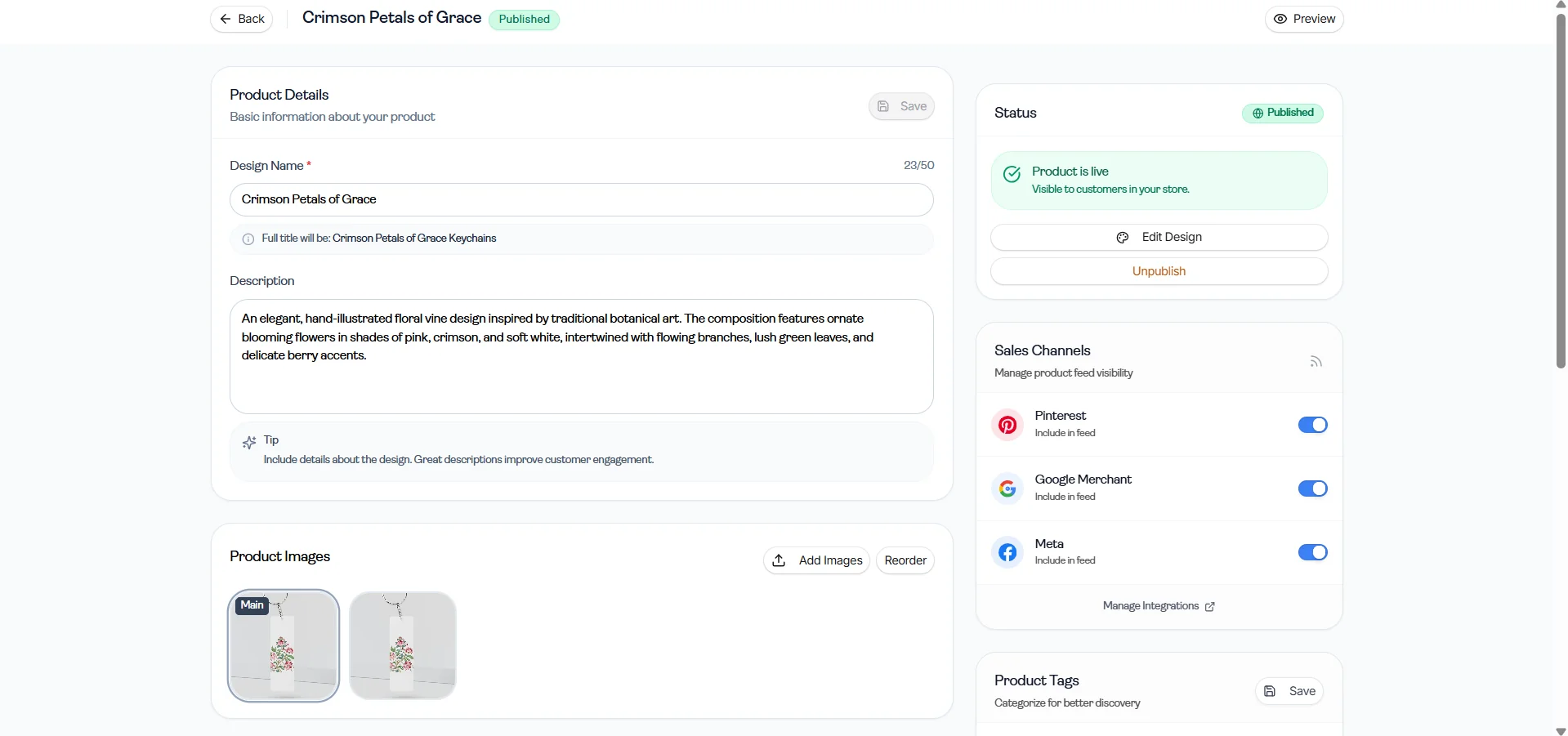
Manage Product Status
Use the Status section to manage product visibility.
You can:
Check whether the product is published
Publish or unpublish a product
Access product design settings
This helps control whether the product is visible in your store.
Configure Sales Channels
In the Sales Channels section, manage where the product is available.
You can enable or disable visibility for connected sales channels and integrations.
This helps control product availability across different platforms.
Update Product Images
Scroll to the Product Images section to manage product visuals.
You can:
Add new product images
Reorder images
Set the main product image
Use clear, high-quality images to improve product presentation.
Update Pricing Settings
In the Pricing section, manage pricing-related configurations.
You may be able to update:
Bulk Commission
Apply a common commission setting across product variants.
Strikethrough Price
Enable compare-at pricing to display promotional or discounted pricing.
Shipping Price
Choose whether shipping charges should be included in the displayed product price.
Click Save Pricing after making updates.
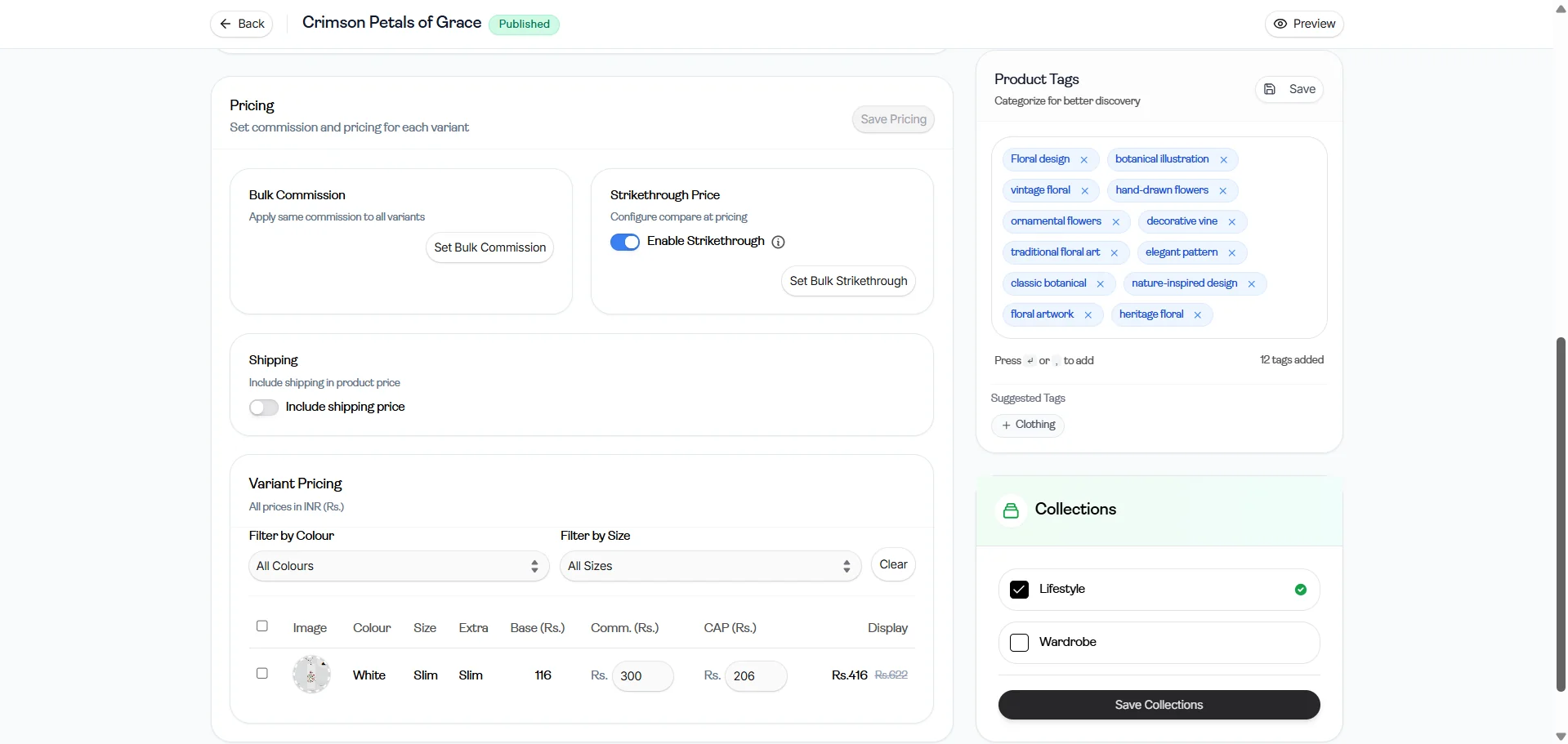
Edit Variant Pricing
Use the Variant Pricing section to manage pricing for individual product variants.
You can:
Filter variants
Update variant pricing
Modify commission values
Adjust displayed pricing
This section is useful for products with multiple variations.
Manage Product Tags
In the Product Tags section, organize products using relevant tags.
Tags can help improve:
Product discoverability
Search functionality
Product categorization
Add or remove tags as needed and click Save.
Update Collections
Use the Collections section to choose where the product appears in your store.
You can:
Add products to collections
Remove products from collections
Organize products into categories
Click Save Collections after making changes.
Preview Product Changes
Click Preview in the top-right corner to review the product before finalizing updates.
Check all product details and settings before saving.