
1. Page Overview
The General Settings Page is where you define your store’s identity, URL, regional accessibility, payment availability, and optional order-level enhancements. This page should be configured carefully during setup, as some fields (especially the Store URL) have long-term impact.
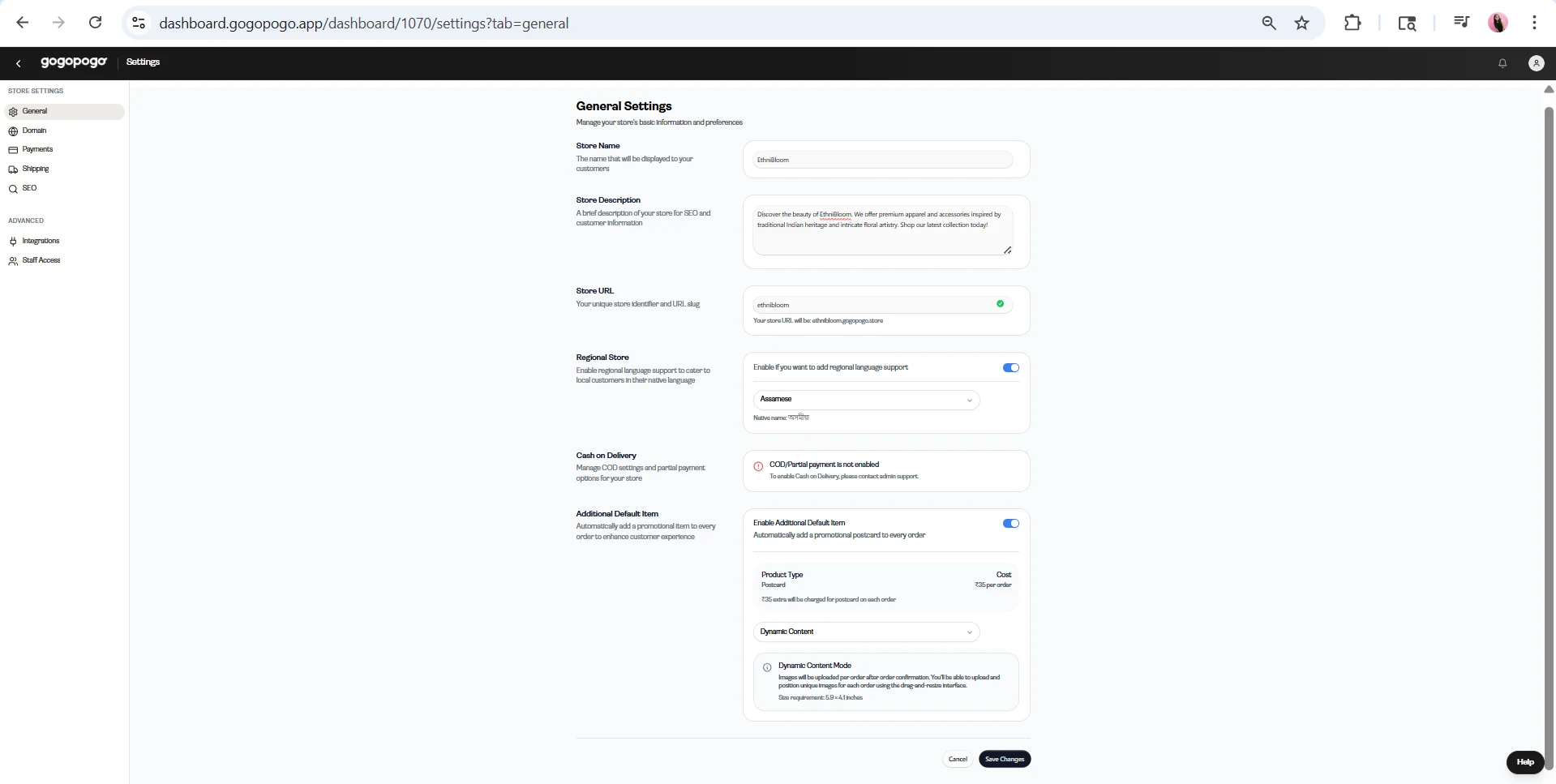
2. Store Name
What it is
- Your Store Name is your customer-facing identity.
Where it appears
- Storefront
- Emails
- Invoices and receipts
- Notifications
Best practices
- Keep it brand-friendly and memorable
- Avoid unnecessary symbols or long names
- Do not change frequently, as this can create inconsistency in branding and confuse customers
3. Store Description
Purpose
- Supports SEO (search engine visibility)
- Helps customers quickly understand your store
What to include
- What you sell
- Who your products are for
- Your brand tone (e.g., premium, minimal, playful)
Important tip
- Do not leave this empty or random. A weak or missing description can negatively affect discoverability later.
4. Store URL (Critical Section)
What it is
- Your Store URL is your unique store slug that forms your main link.Example: yourstore.gogopogo.store
Important warnings
- Do not change frequently — this can break links, affect SEO, and weaken branding
- Never change if:
Impact of changing the URL
- Breaks customer bookmarks
- Reduces repeat visits
- Affects customer trust
Recommendation
- Set it correctly once and avoid modifying it later.
5. Regional Store
What it does
- Enables regional language support for your store.
When to use
- When targeting local audiences, especially in India
Clarifications
- This is an optional feature
- Useful when scaling your store to wider audiences
- Not mandatory during initial setup
- The feature is still developing and may improve over time
6. Cash on Delivery (COD)
What it is
Cash on Delivery allows customers to:
- Pay at the time of delivery
- Use partial payment options (where applicable)
Current limitation
- COD is not enabled by default
- To enable COD, you must contact admin support
Important clarification
- This is not a self-service feature
- It cannot be enabled directly from this page
When to enable
- Particularly useful in the Indian market
- Helps build trust and can improve conversion rates, especially for new customers
7. Additional Default Item (Optional)
What it does
- Automatically adds an item (e.g., a postcard) to every order.
Key clarifications
- This feature is optional
- The item is added per order, not per product
When Enabled
- When enabled, additional configuration options appear:
Product Type and Cost
- Example: Postcard
- A fixed cost is applied per order (as shown in the UI)
- This cost is charged for every order where the item is included
Static Content
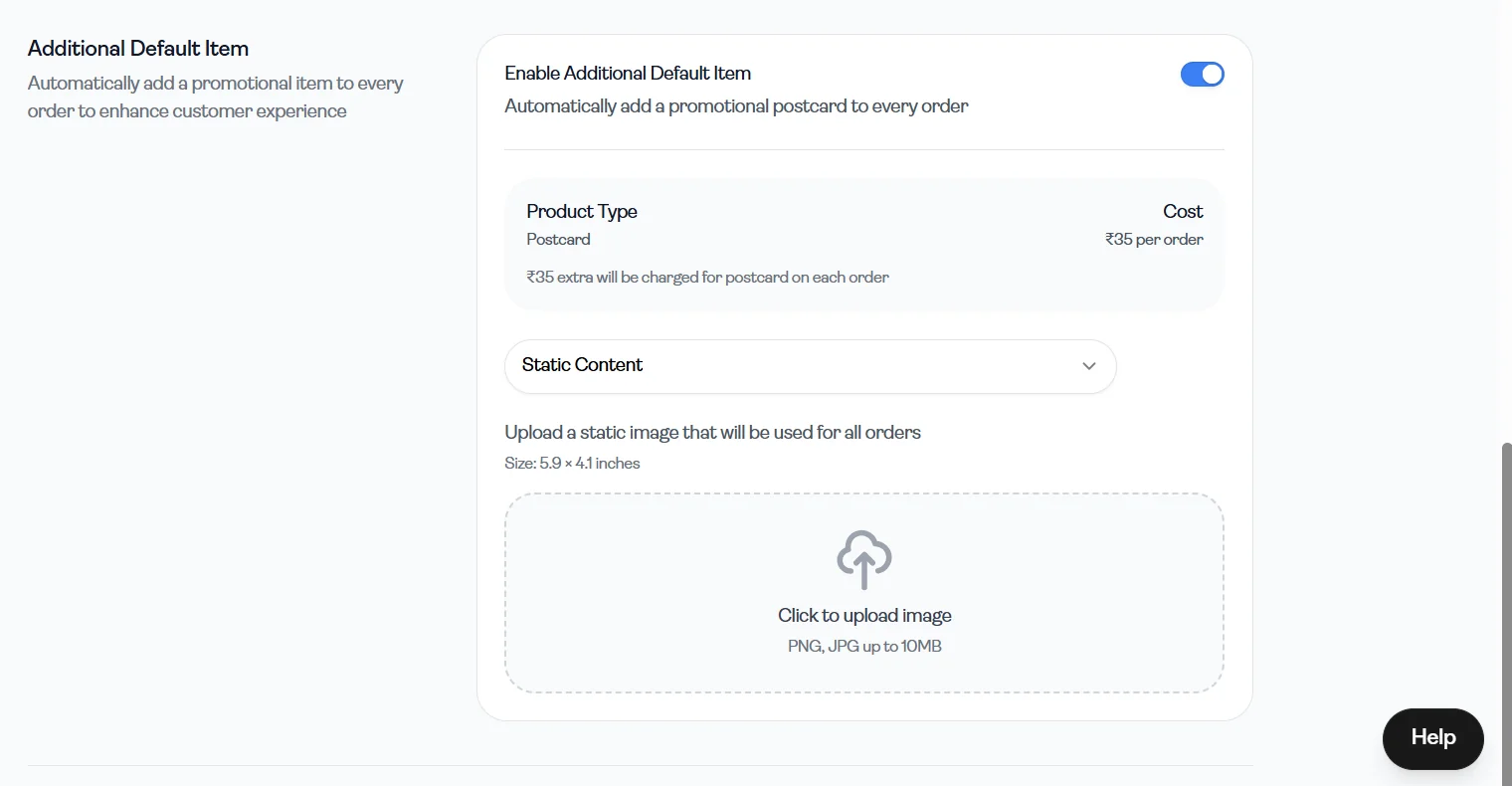
What it means
- The same design is used for every order
How it works
- You upload a single image
- That image is automatically included in all orders
Requirements
- Size: 5.9 × 4.1 inches
- Format: PNG or JPG
Use cases
- Thank-you cards
- Branding inserts
- Promotions
Dynamic Content
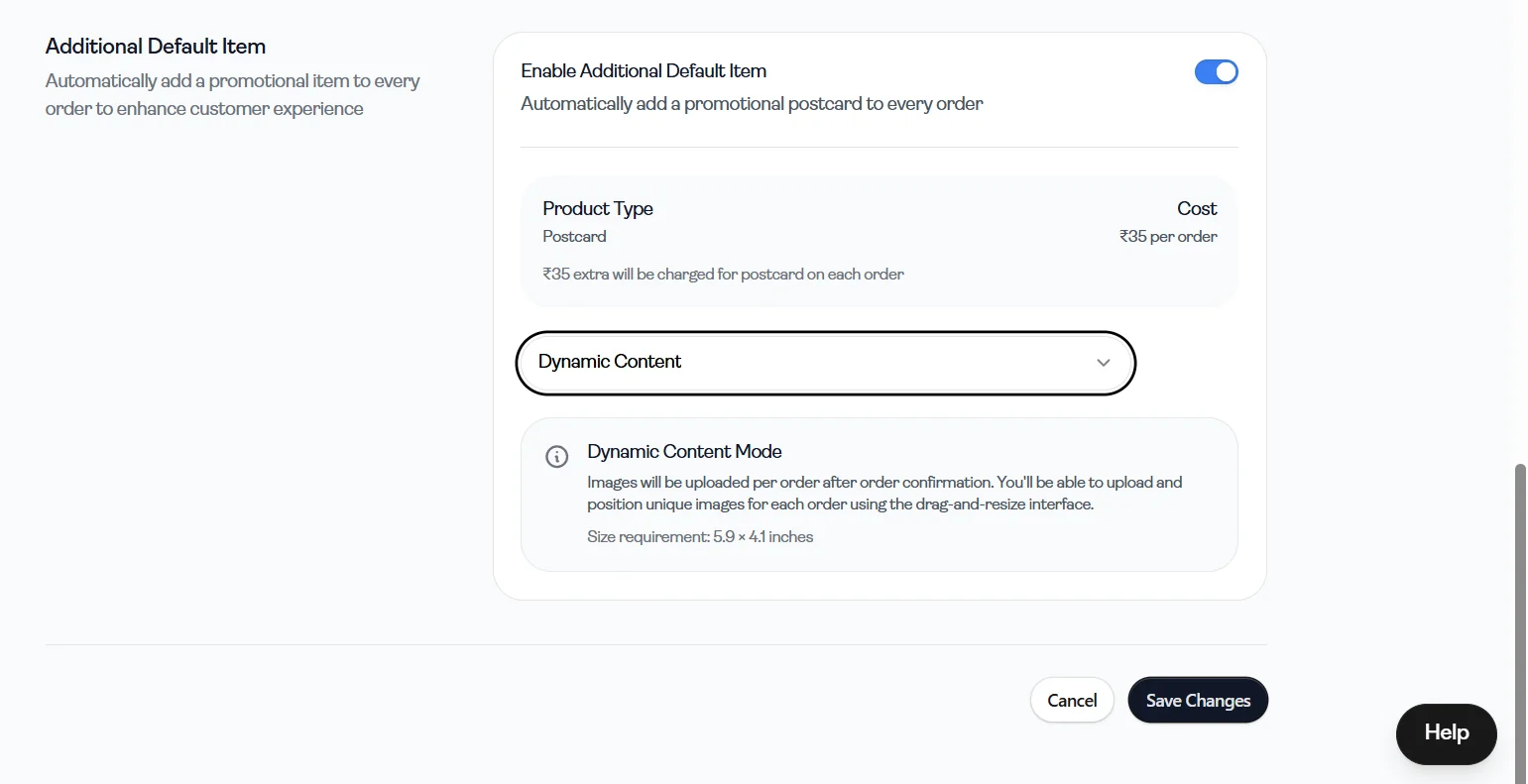
What it means
- Content can vary for each order
How it works
- Images are uploaded after order confirmation
- You can customize content per order
Requirements
- Size: 5.9 × 4.1 inches
Use cases
- Personalized messages
- Customer-specific promotions
Important points
- An additional cost is applied per order
- Useful for branding and marketing purposes
Not mandatory
- This feature is not required for your store to function
- It can be skipped during initial setup
8. Save Changes
After making updates, click “Save Changes” at the bottom of the page to apply them.Changes will not be reflected unless saved.