
Meta Catalog Feed
This is the other half of the Meta setup. The Meta Catalog feed is one file holding every product in your shop. Meta reads it, so your products can appear in Instagram and Facebook Shops, and in ads that show the exact item someone was looking at.
The Meta Pixel is what tells Meta which ads work. The catalog is what gives Meta something to sell. Set up both for ads.
Open Meta Catalog
Section titled “Open Meta Catalog”In the left menu, open Settings, then Integrations. The card sits under Feed.
Open it directly: Settings → Integrations
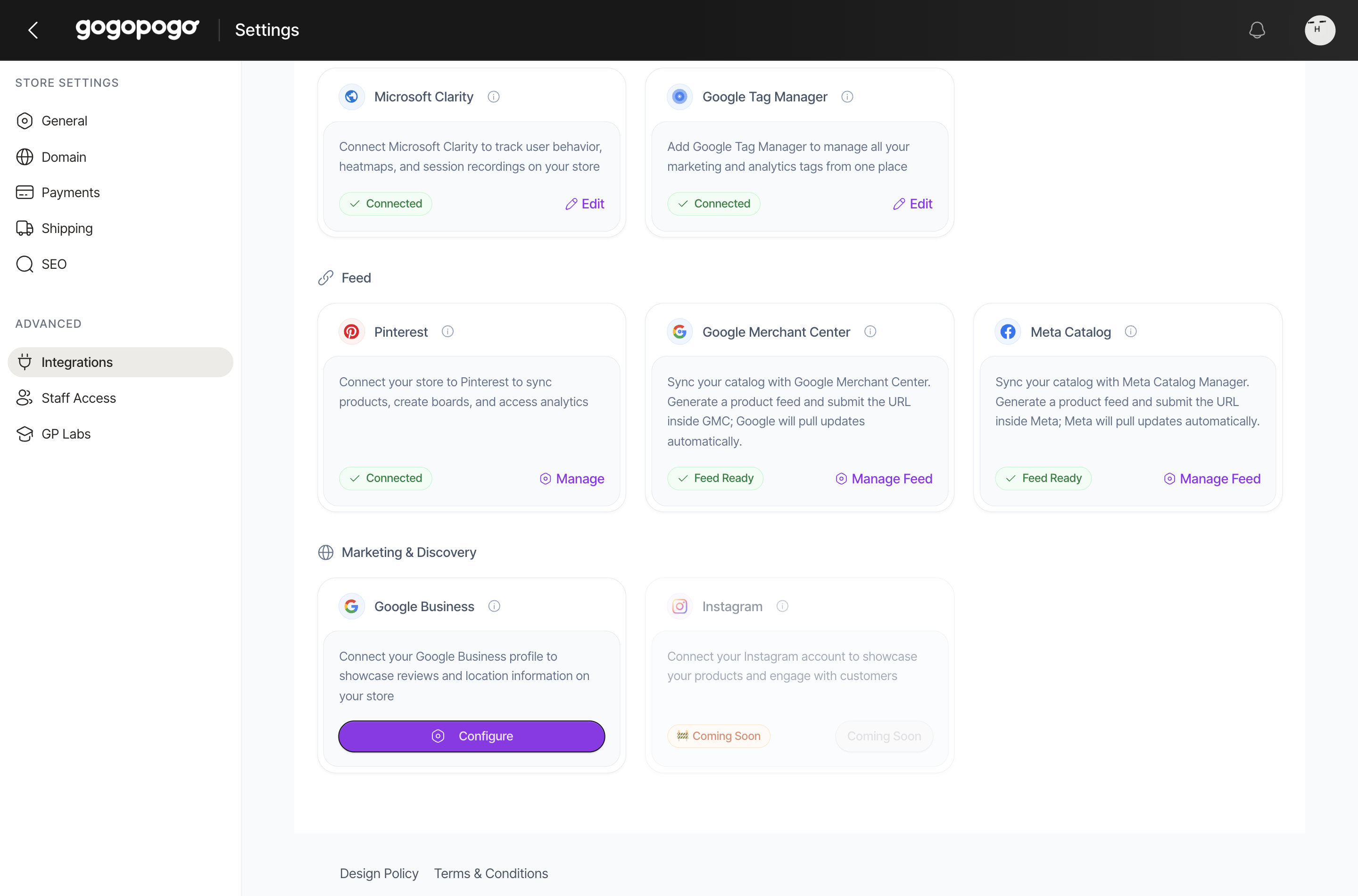
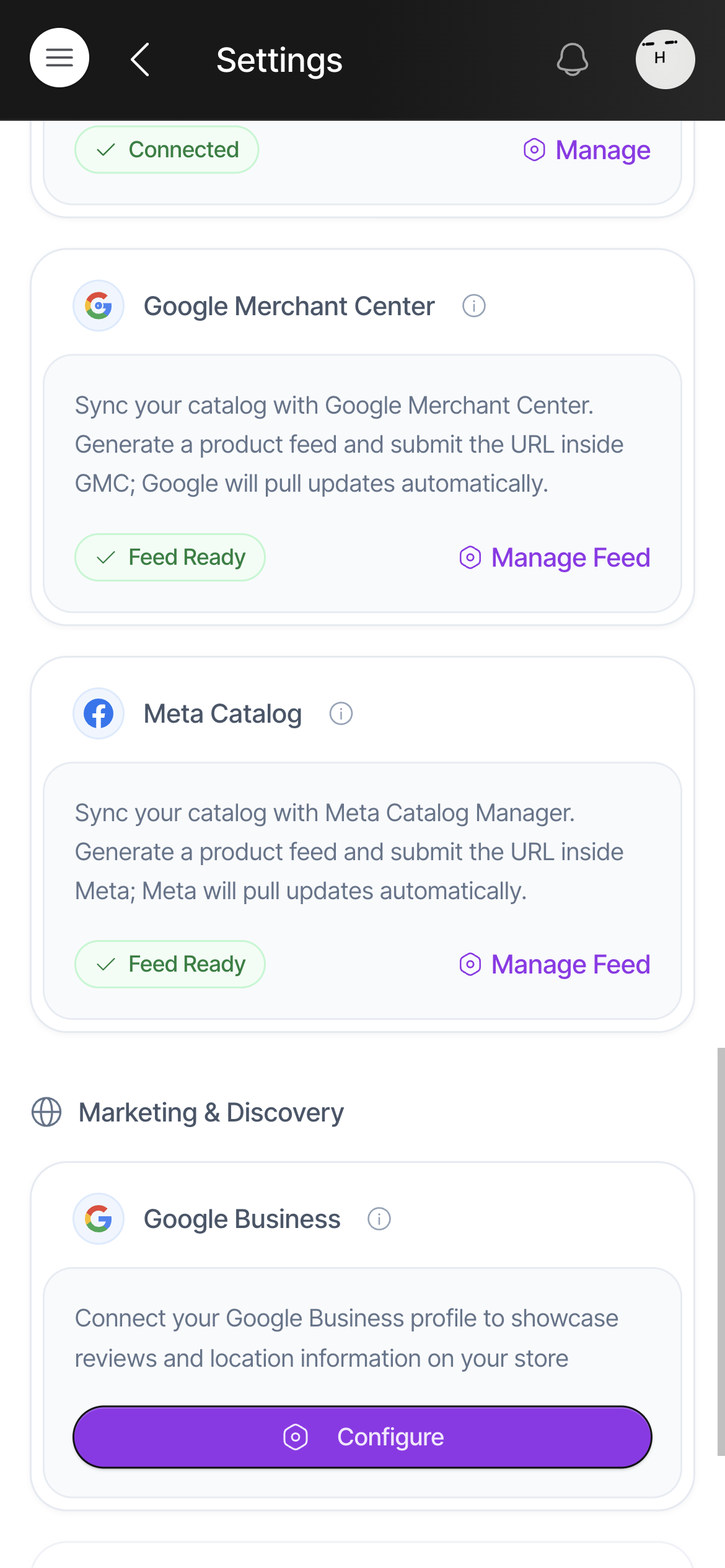
Click Manage Feed.
The feed has a fixed address
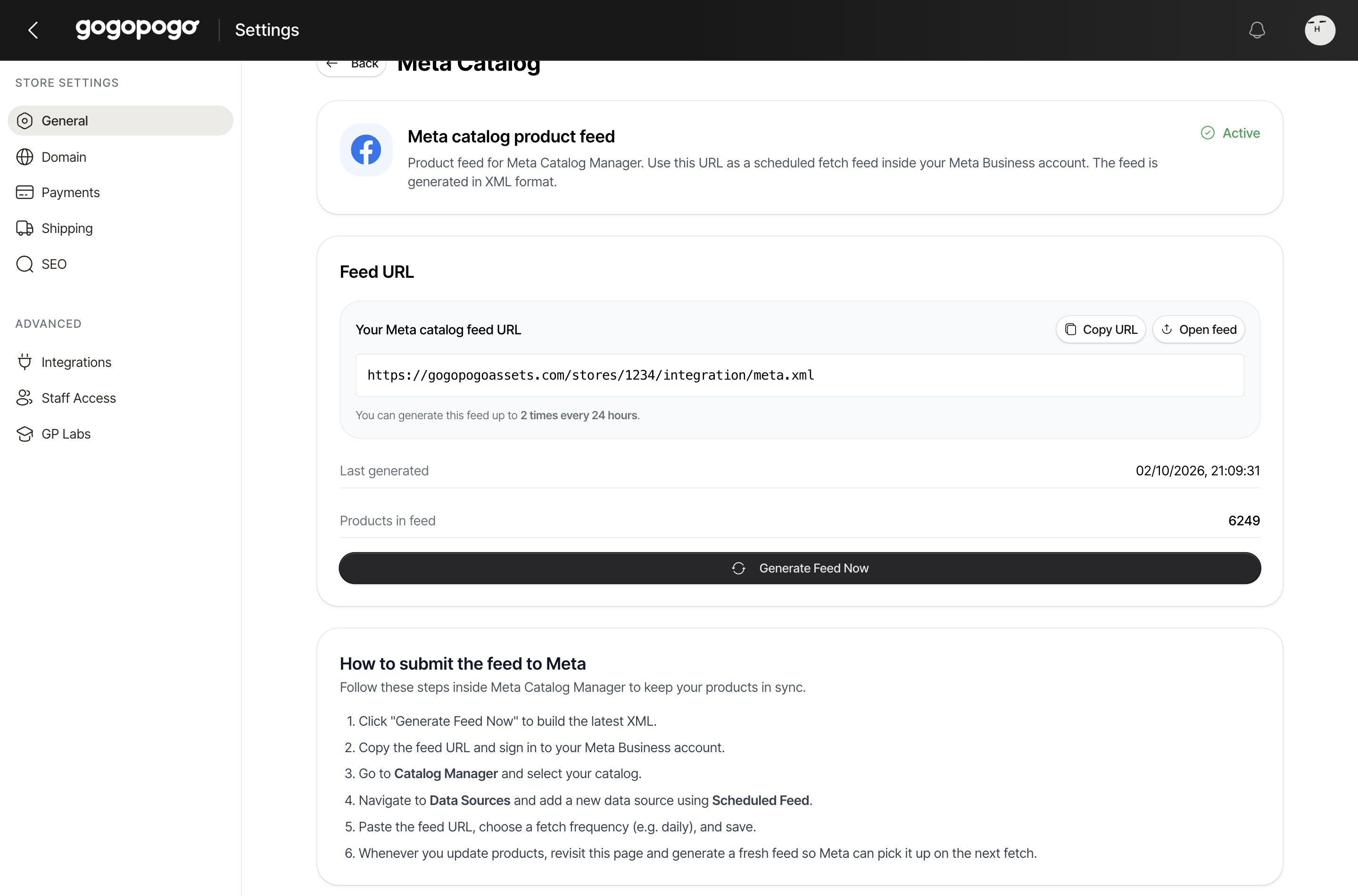
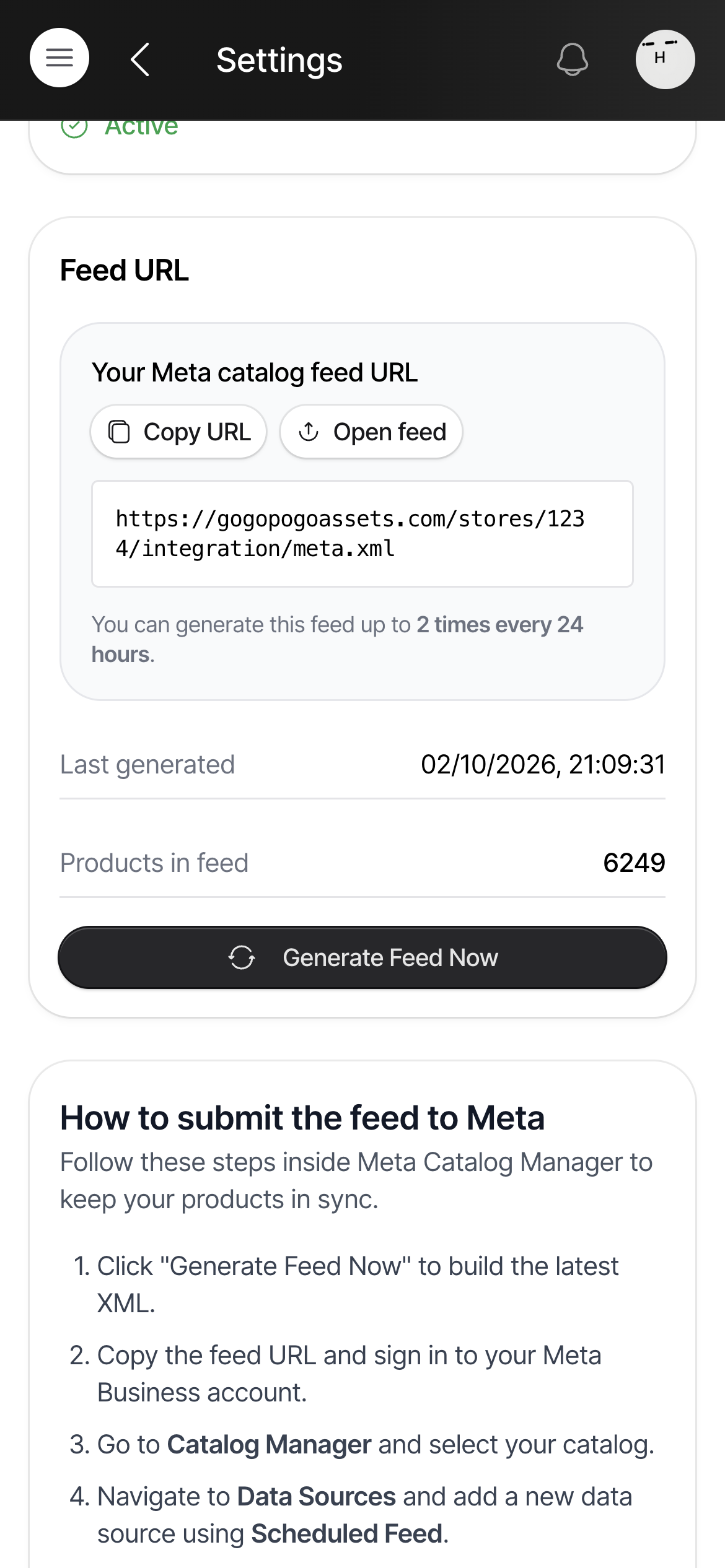
Section titled “The feed has a fixed address”Your feed lives at one web address that does not change — https://gogopogoassets.com/stores/1234/integration/meta.xml, with your own store number in it.
That is the point of it. You paste it into Meta once, and Meta comes back to that same address on a schedule to pick up whatever is there.
Generate Feed Now is what puts your current products at that address.
You can generate the feed twice every 24 hours. Save your product edits up and generate once, rather than spending both runs on one change.
Give it to Meta
Section titled “Give it to Meta”Sign in to your Meta Business account with the feed URL copied, then follow the steps on the page:
- Build the latest file with Generate Feed Now.
- Copy the feed URL.
- In Catalog Manager, open the catalog you want to fill.
- Go to Data Sources and add a Scheduled Feed.
- Paste the URL, set how often Meta should fetch it (daily is a good default), and save.
- Whenever you change products, come back here and generate a fresh feed.
Meta fetches on the schedule you chose — so after generating, it can take up to that long before the changes appear.
Products that did not make it in
Section titled “Products that did not make it in”If a product cannot be included, it is listed under Products skipped during the last feed, each with the reason:
| Reason | What to do |
|---|---|
| Sync disabled | The product is opted out of Meta. Click Enable Sync on its row, or Enable All to switch the whole list on. |
| Missing product image | Add a main picture to the product in Products. |
| Missing variants | The product has no buyable size or colour set up yet. |
Fixing a reason is not enough on its own — after enabling products or adding an image, generate the feed again, or Meta still receives the old list. The page shows a blue reminder with the button when you have enabled products that are waiting.
Once the products are in, keep the list of skipped products clear. The two most common causes are worth checking before you generate: a product with no picture, and a product whose sizes have not been set up.
Quick checklist
Section titled “Quick checklist”- Generated the feed, and Products in feed shows the count you expect?
- Feed URL pasted into Meta Catalog Manager as a Scheduled Feed?
- Skipped-products list empty — or every reason understood and fixed?
- Regenerated after fixing anything or adding products?
- Under the 2-generates-per-24-hours limit, with a run left for later today?
Who can access this
Section titled “Who can access this”Can access: Owner SubAdmin
Cannot access: Editor Staff