
Meta Pixel (Facebook Pixel)
The dashboard lists this as Facebook Pixel — it is the same thing as the Meta Pixel.
It is the piece of Meta’s tracking that lives on your shop. When someone arrives from one of your ads and later buys, the pixel reports it back, so Meta learns which ad found a buyer and sends you more people like them. Without it, Meta sees clicks but not sales, and spends your budget guessing.
Open the Facebook Pixel card
Section titled “Open the Facebook Pixel card”In the left menu, open Settings, then Integrations. The card sits under Analytics.
Open it directly: Settings → Integrations
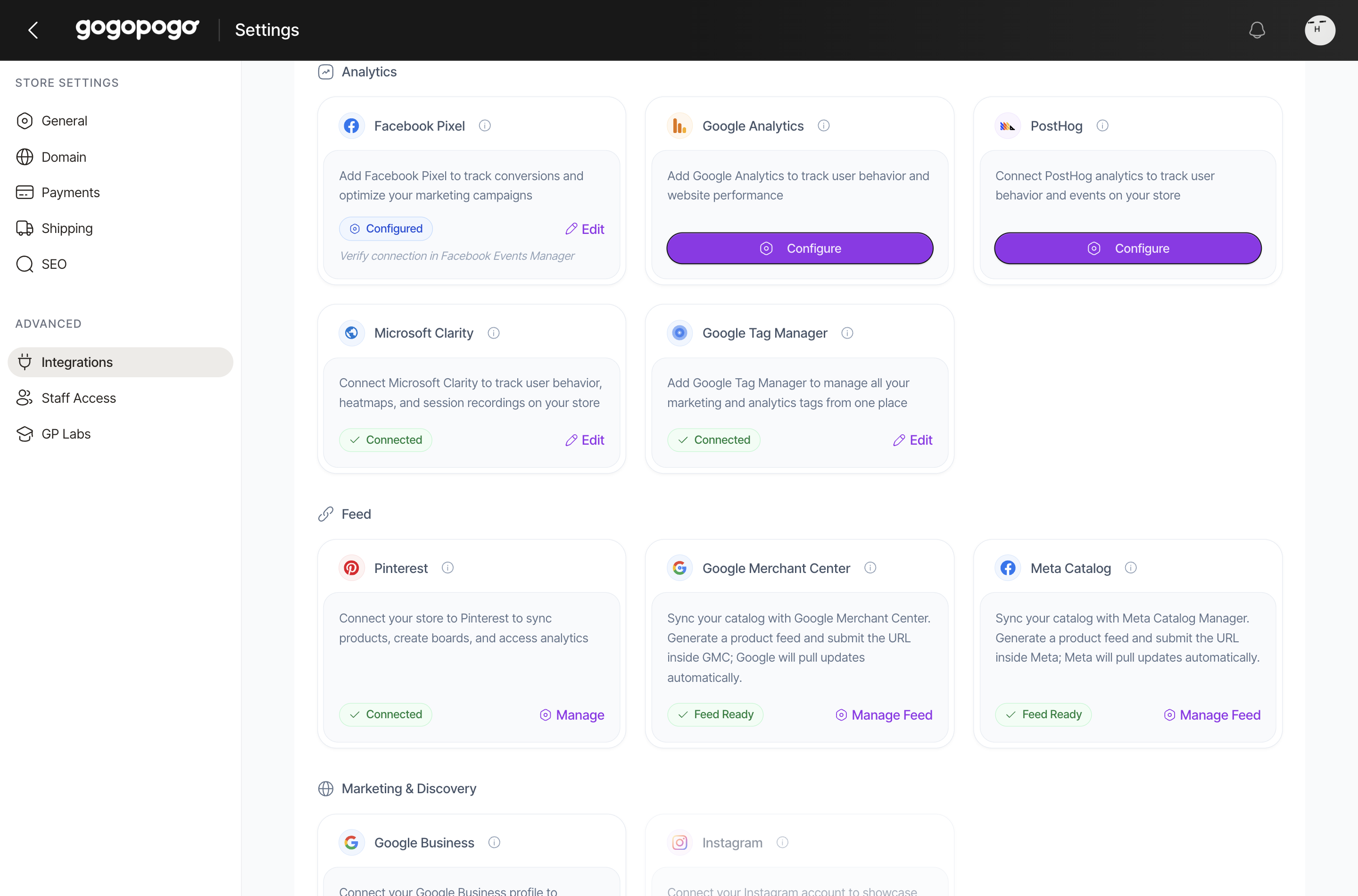
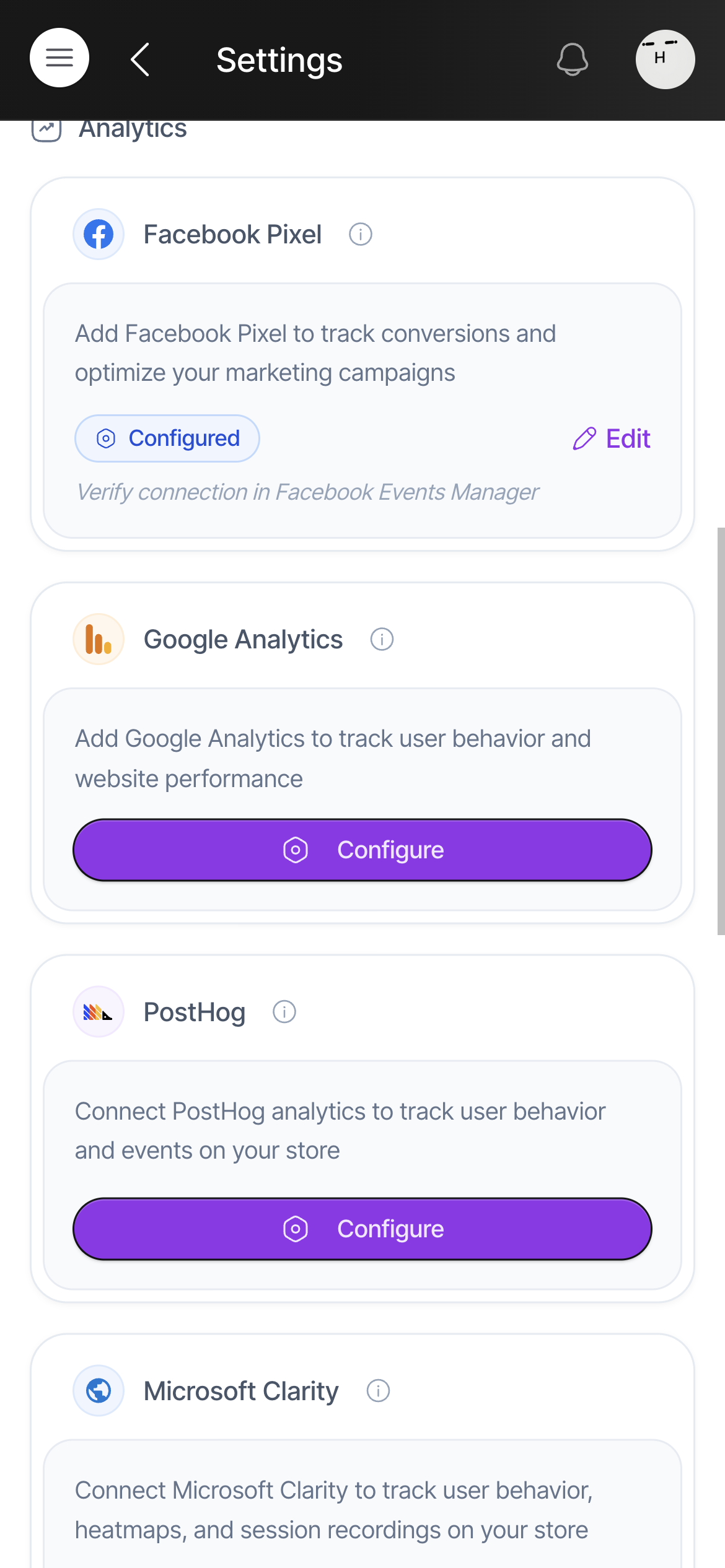
Click Edit. If you have never saved a pixel, the link says Configure instead.
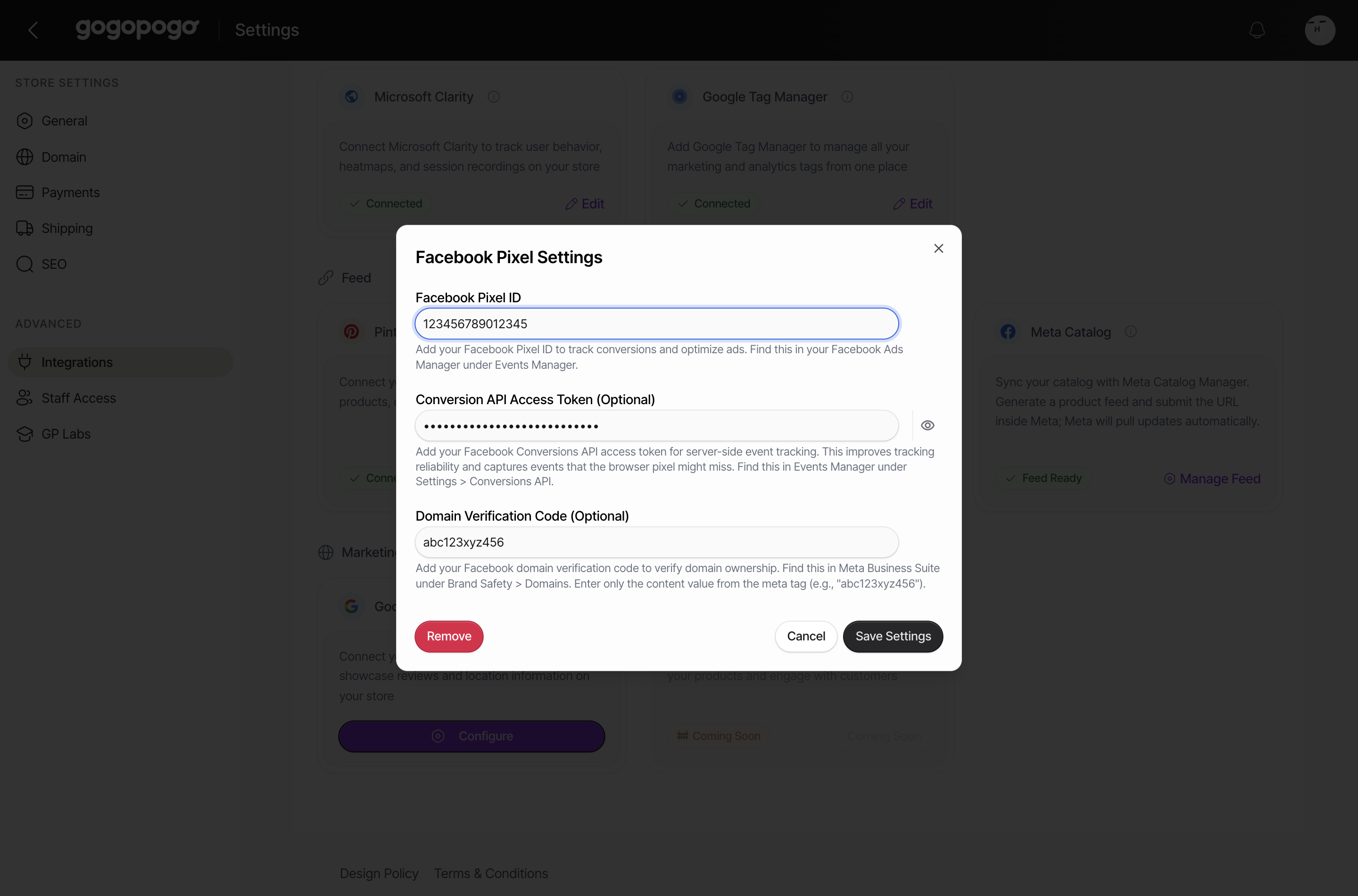
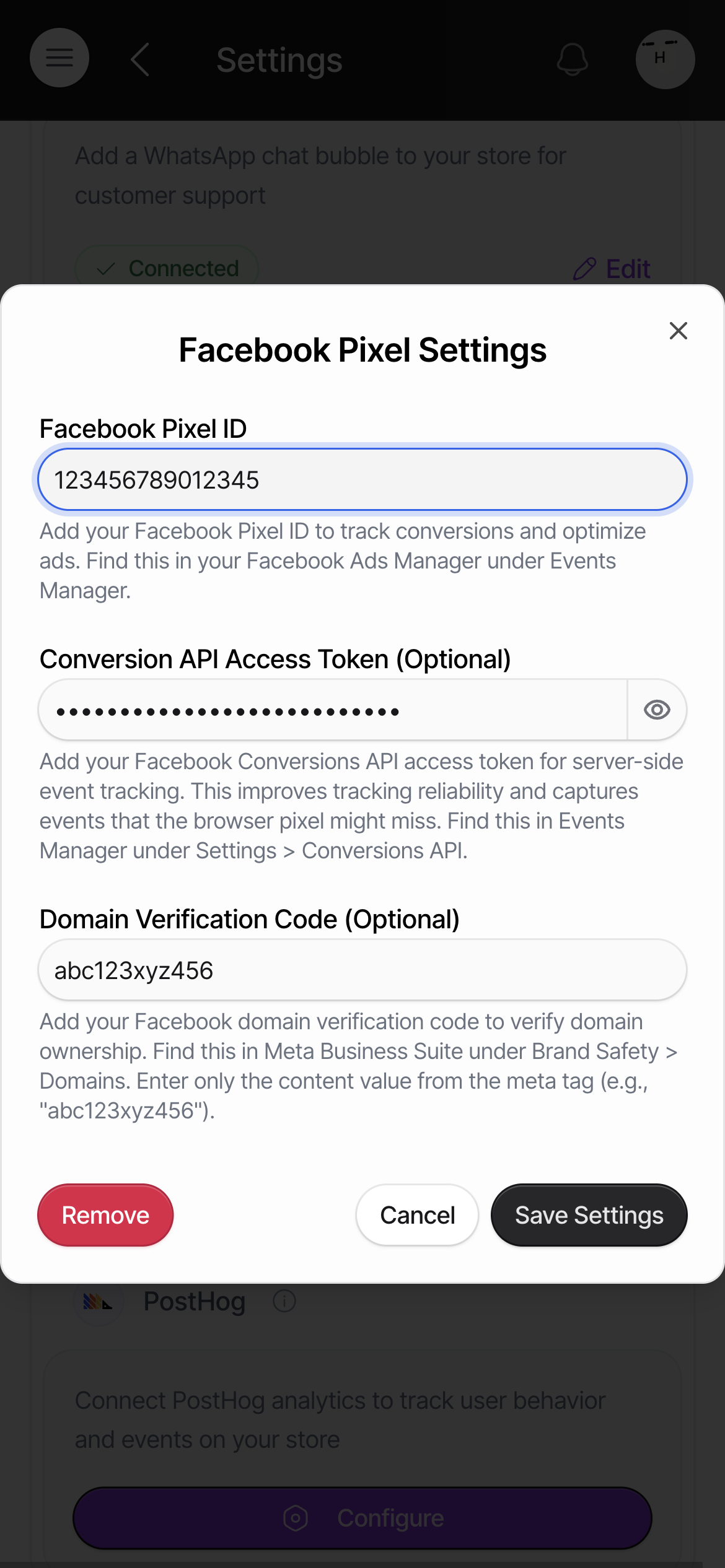
Facebook Pixel ID
Section titled “Facebook Pixel ID”Paste your Pixel ID. It is a long number, for example 123456789012345.
You will find it in Meta’s Events Manager, under Data Sources. It is also shown in Ads Manager.
Conversion API Access Token (optional)
Section titled “Conversion API Access Token (optional)”This is a long permission string from the same place: Events Manager → Settings → Conversions API.
Adding it lets GogoPogo report events from the server as well as the browser. The browser alone misses some sales — for example when a customer’s ad blocker stops the script, or when the page is closed before the event is sent. Meta counts more of your real conversions with both.
Domain Verification Code (optional)
Section titled “Domain Verification Code (optional)”Meta gives you a verification tag to prove the domain is yours. Paste only the content value from inside that tag, not the whole <meta ... /> line — the small part in quotes, for example abc123xyz456.
You will find it in Meta Business Suite under Brand Safety → Domains.
Save it
Section titled “Save it”Click Save Settings. The card on the Integrations page switches to Configured.
To check it is working, open Events Manager on Meta’s side. GogoPogo only reports the setting as saved; it does not show you the incoming events.
Quick checklist
Section titled “Quick checklist”- Pixel ID pasted, not the pixel name?
- Token added if you want server-side reporting as well?
- Domain code pasted as the plain value, without the
<meta>tag around it? - Clicked Save Settings, and the card now says Configured?
- Checked Events Manager in Meta to see events arriving?
Who can access this
Section titled “Who can access this”Can access: Owner SubAdmin
Cannot access: Editor Staff