
The SEO Settings Page
SEO is short for search engine optimisation — the work of making your shop easy to find on Google. Most of it happens on this one page.
Nothing here changes how your shop looks to someone already browsing it. It changes what people see in Google results, and when someone shares your link. For many shops that is the first impression, before the visit.
Open Settings → SEO
Section titled “Open Settings → SEO”In the left menu, open Settings, then SEO.
Open it directly: Settings → SEO
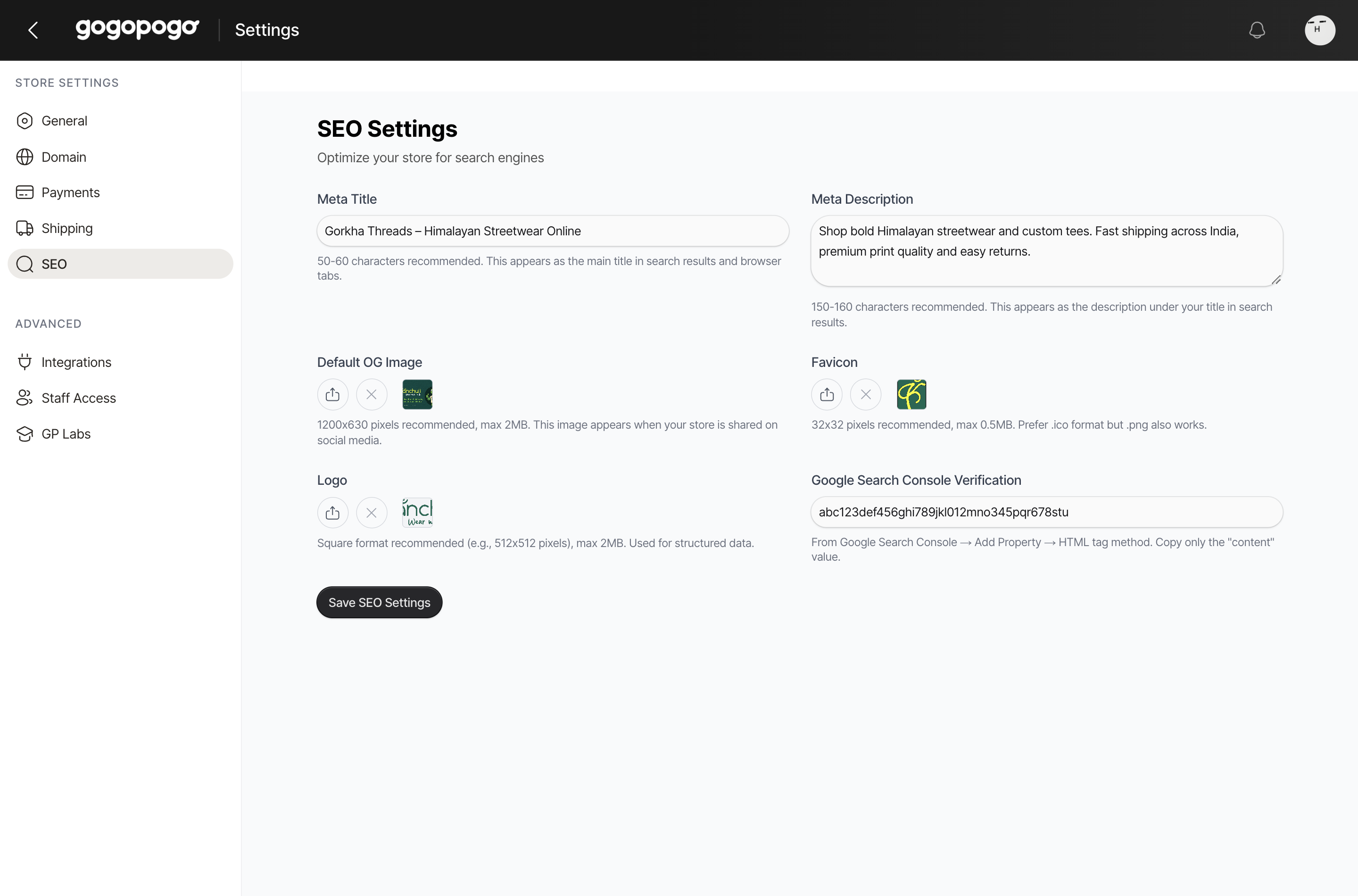
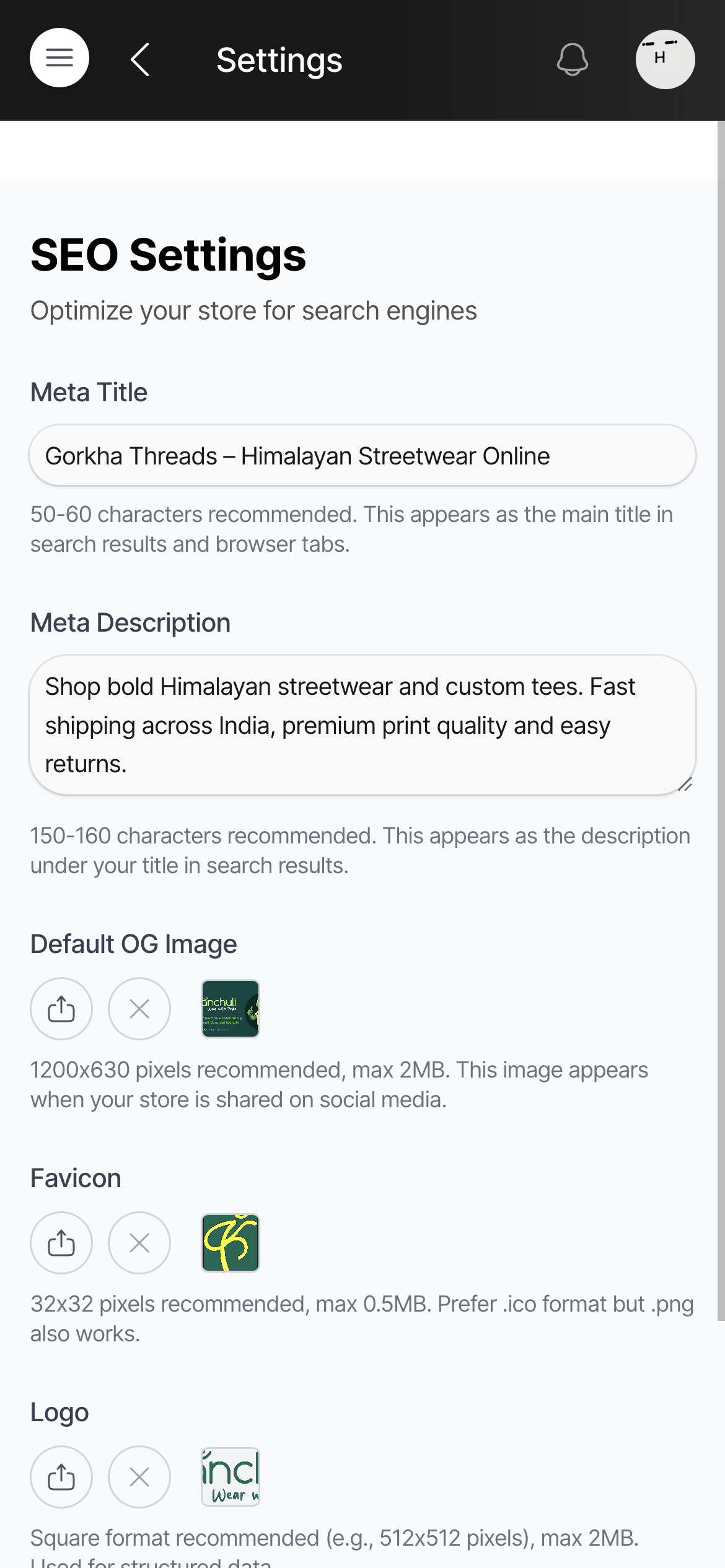
The title Google shows
Section titled “The title Google shows”Meta Title is the blue line in a Google result, and the words in the browser tab. It is the most important box on the page.
Keep it around 50 to 60 letters. Google cuts off anything longer. Put the shop name and what you sell in it — Kanchuli — Gorkhali T-shirts and Hoodies.
The line under it
Section titled “The line under it”Meta Description is the grey text under your title in Google. It does not decide how high you rank, but it decides whether someone clicks.
150 to 160 letters. Write it as a reason to visit: what you sell, and what makes you different.
The picture when someone shares your link
Section titled “The picture when someone shares your link”Default OG Image is the picture that appears when your shop link is pasted into WhatsApp, Instagram or Facebook. OG stands for Open Graph, the way a link previews outside your shop.
1200 x 630 pixels, under 2MB. A picture wider than it is tall — about twice as wide is ideal. A taller picture gets cropped.
The small icon in the browser tab
Section titled “The small icon in the browser tab”Favicon is the little square beside your shop name in the browser tab and in bookmarks.
32 x 32 pixels, under 0.5MB, as a .ico or .png file. Keep the shape simple and high-contrast — fine detail disappears at that size.
The square logo
Section titled “The square logo”Logo is a square version of your logo, which the dashboard passes to Google as part of the shop’s details.
Square, around 512 x 512 pixels, under 2MB.
Uploading the three pictures
Section titled “Uploading the three pictures”For each one, click the upload icon, choose the file, and wait for the small preview to appear beside it.
- Each picture is saved the moment you pick it, and your shop starts using it straight away — no Save needed.
- To take a picture out, click the X. The shop stops using it straight away and the file is deleted, so to bring it back you would have to upload it again.
Proving the shop is yours (optional)
Section titled “Proving the shop is yours (optional)”Google Search Console Verification proves to Google that the shop belongs to you, so you can see the searches people used to find it.
Leave it blank if you do not use Search Console. If you do: open Search Console, add your shop, choose the HTML tag method, and copy only the content value from the tag Google gives you — not the whole <meta ... /> line.
Save it
Section titled “Save it”Press Save SEO Settings at the bottom of the page.
Meta Title and Meta Description must both be filled in. If either is blank the save is refused and the page moves to the empty box.
Quick checklist
Section titled “Quick checklist”- Meta Title filled in, around 50-60 letters, with the shop name in it?
- Meta Description written as a reason to visit, around 150-160 letters?
- Shared-link picture wider than it is tall, under 2MB?
- Favicon a simple shape that still reads at 32 pixels wide?
- Pressed Save SEO Settings?
Who can access this
Section titled “Who can access this”Can access: Owner SubAdmin
Cannot access: Editor Staff